如果你在用 Video DownloadHelper 抓 M3U8,却经常只看到 master playlist、找不到 .ts 分片,或者合并出来没声音,这一篇就是为了解决这些具体问题。我们用一张决策图先帮你选路线(DownloadHelper 主路径 vs Stream Detector 备选),再给一份实测后的错误矩阵和 6 项预检清单。所有步骤都基于 Chrome / Firefox 上的免费版本,付费版可以省略部分手动动作但对抓 M3U8 不是必需。
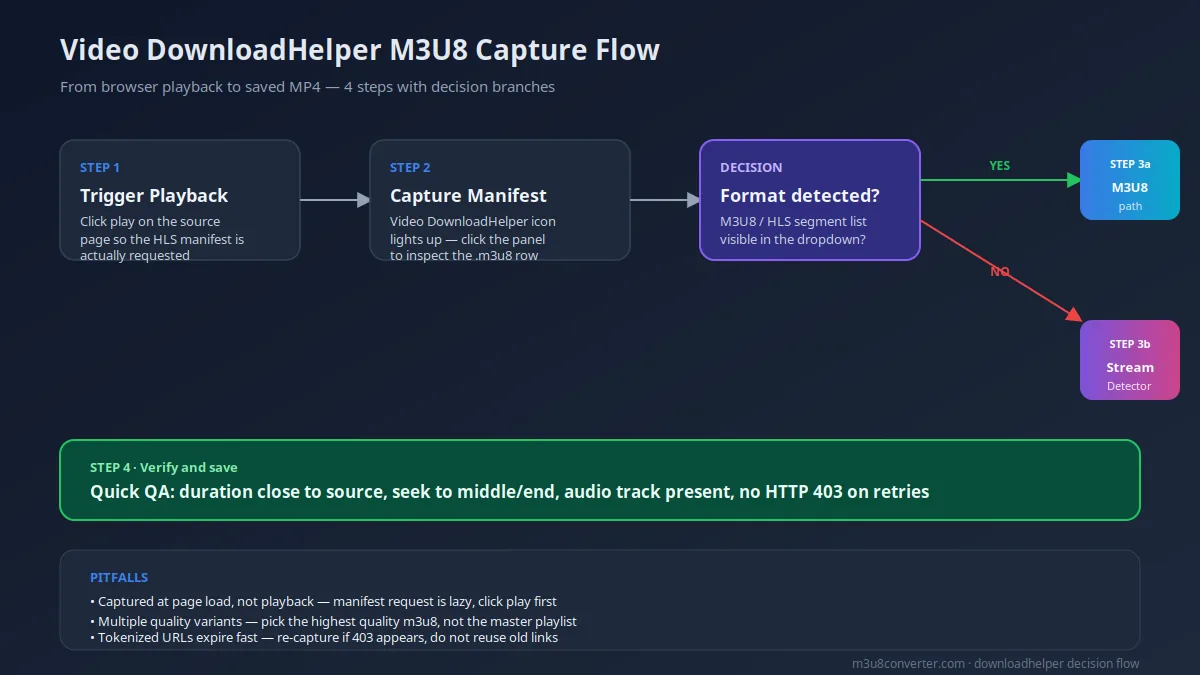
先选路线再动手:DownloadHelper / Stream Detector / 在线工具
很多人失败在第一步:用错工具。下表先按你的实际场景分流,避免走错分支浪费半小时。
| 你的场景 | 推荐工具 | 难度 | 成功率 | 何时切换 |
|---|---|---|---|---|
| Chrome / Firefox 直接抓到 .m3u8 行 | Video DownloadHelper 主路径 | 低 | 高 | 遇到 master-only / 没声音时切到 Stream Detector |
| DownloadHelper 面板空白或只剩 master playlist | Stream Detector 重扫 | 中 | 高 | 重扫仍无时改用 DevTools Network 手抓 |
| 已拿到 m3u8 链接,要稳定合并 | M3U8 Converter 在线合并 / FFmpeg | 低 | 高 | 遇到加密 HLS 时停止,参考合规边界 |
| DRM 加密内容(Widevine / FairPlay / PlayReady) | 停止抓取,使用平台官方授权下载 | 不适用 | 不适用 | 不要尝试绕过保护 |
方法 1:Video DownloadHelper 抓 M3U8(Easy)
🌐 浏览器扩展主路径 Easy
适合 Chrome / Firefox 用户,不需要任何命令行基础。下面是按真实抓取顺序写出的步骤,跳步会导致面板空白。
- 先安装扩展:Chrome 用户从 Chrome Web Store 搜 “Video DownloadHelper”,Firefox 用户从 Mozilla Add-ons 安装同一作者版本。注意不要装到仿冒扩展。
- 打开目标页面后先点播放:必须真的点 ▶ 触发 HLS 拉流,不能只滚到页面就让扩展去扫。HLS 是 lazy 加载,DOM 出现 ≠ 请求发出。
- 等工具栏图标亮起:图标右上角出现红点说明捕获到媒体。点击图标打开面板,在下拉列表里找
.m3u8结尾的行(不是master.m3u8)。 - 右键该行 → “复制链接”:或者用 “Download” 触发直接下载(部分站点会触发跨域失败,此时复制链接更稳)。
- 把链接粘到 M3U8 Converter:浏览器内一键合并为 MP4,不要再多装一个本地下载器。
- QA 抽检:导出后看时长、拖到中间、跳到末尾,确认音轨在。
成功信号: 面板出现至少一条 .m3u8 行;粘到在线工具后进度条稳定递增;导出 MP4 在 VLC / 移动端播放器均能拖动。
失败信号: 图标不亮;面板只列 mp4 / jpg 媒体;只有 master.m3u8 没有分片行。
如果扩展一直不亮,先确认你访问的站点是 HLS 投递(Network 里能看到 application/vnd.apple.mpegurl 或 application/x-mpegurl),再继续后面的排查。如果还没拿到 m3u8 链接,可以看 浏览器提取 M3U8 链接的 5 种方法 和 Get M3U8 Link from URL Online。
方法 2:Stream Detector 备选路径(Medium)
🔍 站点级重扫 Medium
当 DownloadHelper 抓不到、但你怀疑页面上确实有流媒体时,用 Stream Detector 重新扫整页的请求。它不做单媒体识别,而是把页面生命周期内所有 .m3u8 / .mpd / segment 请求列出来,更适合视频嵌套 iframe 的复杂页面。
- 在 Chrome 安装 Stream Detector,打开目标页面后同样先点 ▶ 触发播放。
- 点击工具栏图标,Stream Detector 会展示所有命中的流媒体 URL,按时间倒序排列。
- 优先复制
index.m3u8或playlist.m3u8这一类叶节点,而不是 master。 - 遇到多个候选(常见 480p / 720p / 1080p)时,按清晰度选最高码率的那条,但要先确认它含独立音轨。
- 同方法 1,把链接送到 M3U8 Converter 完成合并。
成功信号: 列表里出现 2 条以上 .m3u8;粘到合并工具后无 403;导出 MP4 音画同步。
失败信号: 列表完全为空(说明 HLS 是 WebSocket 或 DASH 而非 HLS);粘到工具立刻 403(token 过期,需要重抓)。
Stream Detector 抓不到但 DownloadHelper 能抓的场景极少,遇到时通常说明页面用了 MSE + Fragmented MP4 而不是传统 HLS,这种情况可以看 M3U8 下载报错修复 中的 “manifest 类型不对” 一节。
方法 3:从拿到链接到 MP4(衔接 Online / FFmpeg)
🔗 拿到 m3u8 之后 Easy
无论你用 DownloadHelper 还是 Stream Detector,最后都会落到一个 m3u8 链接。这条链接有两种稳定接法:
- 浏览器内合并:直接用 M3U8 Converter,粘贴链接即可,不需要安装任何东西,适合 90% 的一次性需求。
- FFmpeg 命令行:当你需要批量、重试或写定时任务时用 FFmpeg,下面是两种最常见的命令。
ffmpeg -allowed_extensions ALL -protocol_whitelist "file,http,https,tcp,tls,crypto" \
  -i "https://example.com/playlist.m3u8" -c copy output.mp4
ffmpeg -i "https://example.com/playlist.m3u8" -c:v libx264 -c:a aac -movflags faststart output.mp4
命令解释和批量重试写法可参考 FFmpeg M3U8 命令大全,移动端场景看 Mobile M3U8 Video Download。
为什么这篇页面独特:Video DownloadHelper 错误矩阵 + 6 项预检
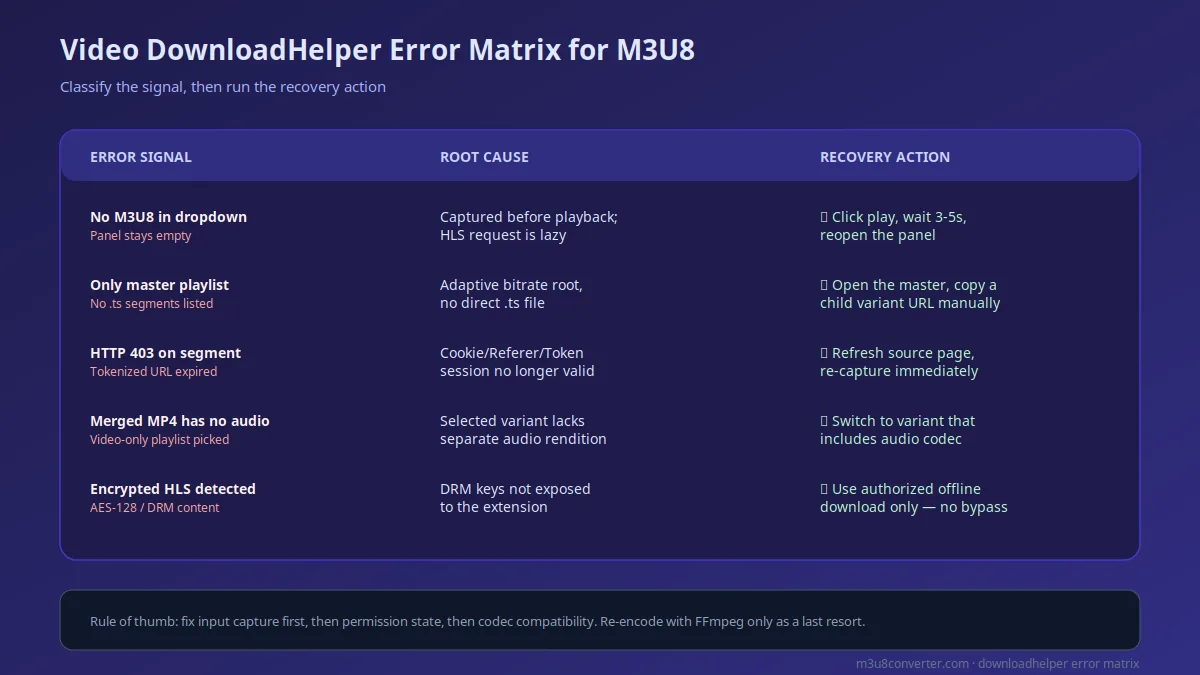
通用教程往往只教 “装好扩展就能用”,但实战中 70% 的失败都能归到下面 5 类信号。我们把信号、根因、恢复动作列在同一张表,你可以照着打勾定位。
| 错误信号 | 最可能根因 | 优先动作 |
|---|---|---|
| DownloadHelper 图标不亮 / 面板空白 | 未触发真实播放,HLS 是 lazy 请求 | 点 ▶ 后等 3-5 秒再点图标,重启浏览器 |
| 面板只列 master.m3u8 没有 .ts 行 | 自适应码率根清单,没有直接分片 | 用 Stream Detector 重扫,复制叶节点 .m3u8 |
| 合并时立刻报 HTTP 403 | token / cookie / Referer 失效 | 刷新源页后 30 秒内重抓,不复用旧链接 |
| 导出 MP4 没声音或音画错位 | 选中的变体是 video-only,没有独立音轨 | 切到含 audio codec 的变体,或重编码为 H.264 + AAC |
| 提示 “encrypted” / Widevine 报错 | DRM 受保护内容,密钥不向扩展暴露 | 停止抓取,改用平台官方授权下载 |
抓取前 6 项预检清单
- 源页面 Network 面板里能看到
application/vnd.apple.mpegurl或application/x-mpegurl响应,确认是 HLS。 - 已实际点击播放按钮(不是 hover / 滚动到可视区)。
- 扩展图标已亮起,且面板里能看到至少一条媒体记录。
- 复制到的是叶节点
.m3u8,不是 master playlist。 - 链接是 30 秒内新抓的(避免 token 过期)。
- 目标容器是 MP4(H.264 + AAC),移动端兼容性最好。
常见问题与下一步
1) Video DownloadHelper 抓不到 m3u8 怎么办?
九成是 “未真正播放” 或 “抓的是 master 而不是分片”。先点 ▶ 触发,再点图标;如果只看到 master.m3u8,换 Stream Detector 复制叶节点 URL。
2) Stream Detector 跟 Video DownloadHelper 有什么区别?
DownloadHelper 按媒体类型识别(识别得到就显示),Stream Detector 按请求 URL 模式识别(更宽松)。前者准确、后者兜底,两者配合基本覆盖所有 HLS 站点。
3) 抓到了 m3u8 但合并后没声音?
说明你抓到的是 video-only 变体。回 Stream Detector 选一个 video+audio 的变体(通常码率更高那条),或者用 FFmpeg 重编码为 H.264 + AAC。
4) Video DownloadHelper 提示 “需要付费版” 怎么办?
免费版对常规 HLS 抓取已经够用。付费版主要在“自动转码 / 一键合并”上省事。如果你抓到了链接但不想装桌面工具,可以直接粘到 M3U8 Converter 完成合并。
5) 为什么每次都报 403?
token / cookie 时效问题。刷新源页面后 30 秒内重抓,不要复用历史链接;如果仍 403,改用 FFmpeg 并加 -headers "Referer: ..." 携带原始 Referer。
关联教程与外部参考
- Online M3U8 Downloader 实战指南:拿到链接后用在线工具合并的完整路径。
- Get M3U8 Link from URL Online:6 种在线提取方法,作为扩展抓不到时的兜底。
- 浏览器提取 M3U8 链接的 5 种方法:用 DevTools Network 手抓 m3u8,作为最后兜底。
- M3U8 下载报错修复:覆盖 403、超时、连接失败场景的排障手册。
- FFmpeg M3U8 命令大全:批量、自动化、参数解释全在这里。
- Video DownloadHelper 官网:安装时认准官方域名,避免装到仿冒扩展。
现在就用:拿到 m3u8 之后一键合并
把 Video DownloadHelper 或 Stream Detector 抓到的链接粘到 M3U8 Converter,浏览器内直接合并为 MP4,不需要装任何本地工具。
打开 M3U8 ConverterIf you are using Video DownloadHelper for M3U8 and keep getting only the master playlist, missing audio, or a panel that refuses to light up, this page solves the exact failure modes. We start with a decision flow (DownloadHelper main path vs Stream Detector fallback), then ship a tested error matrix and a six-point preflight checklist. Every step is based on the free Chrome and Firefox builds; the paid version skips some manual work but is not required for M3U8 capture.
Route First: DownloadHelper / Stream Detector / Online Tool
Most failed sessions start with the wrong tool. Use this matrix to pick the correct path before you spend 30 minutes debugging.
| Your Scenario | Recommended Tool | Difficulty | Success Rate | When to Switch |
|---|---|---|---|---|
| Chrome / Firefox shows a direct .m3u8 row | Video DownloadHelper main path | Low | High | Switch to Stream Detector when only the master playlist appears or audio is missing |
| DownloadHelper panel is empty or only lists master.m3u8 | Stream Detector re-scan | Medium | High | Fall back to DevTools Network hand-grab when re-scan is still empty |
| You already have an m3u8 URL and want a stable merge | M3U8 Converter online merge or FFmpeg | Low | High | Stop immediately on encrypted HLS — see compliance scope |
| DRM-encrypted content (Widevine / FairPlay / PlayReady) | Stop capture, use official authorized download | N/A | N/A | Do not attempt bypass |
Method 1: Video DownloadHelper Capture (Easy)
🌐 Browser Extension Main Path Easy
Ideal for Chrome and Firefox users with no CLI background. Follow the order below — skipping a step is the #1 reason for an empty panel.
- Install from the official store: Chrome Web Store or Mozilla Add-ons. Verify the publisher domain matches the official site — copycat extensions exist.
- Click play on the target page first: You must trigger the HLS request. Scrolling to the player or hovering it does not fire the manifest.
- Wait for the toolbar icon to light up: A red badge means media is detected. Click the icon to open the panel, then look for a row ending in
.m3u8(not the master playlist). - Right-click the row → "Copy link": Or click "Download" to trigger a direct save. Cross-origin failures are common on direct download — copying the link is usually safer.
- Paste the link into M3U8 Converter: Merge to MP4 entirely in the browser. No extra desktop tool needed.
- Quick QA: Verify duration, scrub to mid-point, jump to the end, and confirm the audio track exists.
Success signals: at least one .m3u8 row visible, steady progress in the online merger, output MP4 plays and scrubs cleanly in VLC and on mobile.
Failure signals: icon never lights up, panel only lists mp4 / jpg entries, only the master playlist row is present.
If the icon never lights up, first confirm the site actually delivers HLS by checking for application/vnd.apple.mpegurl or application/x-mpegurl responses in the Network tab. If you do not have a usable URL yet, read 5 ways to extract M3U8 links in browser or Get M3U8 Link from URL Online.
Method 2: Stream Detector Fallback (Medium)
🔍 Page-Wide Rescan Medium
When DownloadHelper misses the target but you are confident a stream exists, Stream Detector rescans every request on the page. It does not classify by media type; it lists every URL matching .m3u8, .mpd, or segment. This is more resilient on pages that nest players in iframes.
- Install Stream Detector in Chrome, open the target page, and click ▶ to trigger playback.
- Click the toolbar icon. Stream Detector lists all matched stream URLs, newest first.
- Prefer leaf-level
index.m3u8orplaylist.m3u8URLs over the master playlist. - When multiple variants are available (typical 480p / 720p / 1080p), pick the highest bitrate that still carries an audio codec.
- Send the link to M3U8 Converter to finish the merge.
Success signals: two or more .m3u8 entries appear, no HTTP 403 from the merger, clean A/V sync in the output.
Failure signals: the list is empty (the site likely uses WebSocket or DASH instead of HLS), or the merger returns 403 immediately (token expired — recapture).
Rare cases where Stream Detector fails but DownloadHelper succeeds usually point to MSE plus Fragmented MP4 rather than classic HLS. See the "wrong manifest type" section of M3U8 download error fixes.
Method 3: From m3u8 URL to MP4 (Online or FFmpeg)
🔗 After You Have the Link Easy
Regardless of which extension you used, you will end up with an m3u8 URL. Two reliable ways to convert it to MP4:
- Browser-only merge: paste the link into M3U8 Converter. No install, covers ~90% of one-off needs.
- FFmpeg CLI: use this for batch jobs, retries, and scheduled tasks. The two workhorse commands:
ffmpeg -allowed_extensions ALL -protocol_whitelist "file,http,https,tcp,tls,crypto" \
  -i "https://example.com/playlist.m3u8" -c copy output.mp4
ffmpeg -i "https://example.com/playlist.m3u8" -c:v libx264 -c:a aac -movflags faststart output.mp4
For deeper parameter explanations and batch retry patterns, see the FFmpeg M3U8 command guide. Mobile-specific workflows live in Mobile M3U8 Video Download.
Why This Page Is Unique: Error Matrix + Six-Point Preflight
Generic tutorials tell you "install the extension and it works." In practice, 70% of failures map to one of the five signals below. We list signal, root cause, and recovery action in a single matrix so you can check off the diagnosis.
| Error Signal | Most Likely Cause | Priority Action |
|---|---|---|
| DownloadHelper icon does not light up / panel is empty | Playback was not triggered, HLS loads lazily | Click play, wait 3-5 seconds, then open the icon; restart the browser if needed |
| Only master.m3u8 listed, no .ts rows | Adaptive bitrate root, no direct segment list | Use Stream Detector to recapture and copy a leaf-level .m3u8 |
| HTTP 403 the moment merge starts | Token / cookie / Referer validation failed | Refresh the source page, recapture within 30 seconds, do not reuse old URLs |
| Output MP4 has no audio or A/V drift | Selected variant is video-only, no separate audio rendition | Pick a variant with an audio codec, or re-encode to H.264 + AAC |
| "Encrypted" or Widevine error appears | DRM keys are not exposed to the extension | Stop capture, use the platform's official authorized download instead |
Six-Point Preflight Checklist
- Network tab shows an
application/vnd.apple.mpegurlorapplication/x-mpegurlresponse, confirming HLS. - Playback has actually been triggered (not just hover or scroll into view).
- The extension icon is lit and the panel shows at least one media entry.
- You copied a leaf-level
.m3u8, not the master playlist. - The URL was recaptured within the last 30 seconds to avoid token expiry.
- Target container is MP4 (H.264 + AAC) for the best mobile compatibility.
FAQ (Query-driven)
1) Video DownloadHelper is not capturing m3u8 — what now?
Nine times out of ten, the issue is "no real playback" or "you captured the master, not the leaf." Click play first, then the icon. If you only see the master playlist, switch to Stream Detector and copy a leaf-level URL.
2) How is Stream Detector different from Video DownloadHelper?
DownloadHelper classifies by media type — if it does not recognize the media, it shows nothing. Stream Detector matches by URL pattern, which is more permissive. DownloadHelper is more accurate when it works; Stream Detector is the safety net.
3) The m3u8 is captured but the MP4 has no audio. Why?
You grabbed a video-only variant. Go back to Stream Detector and pick a variant that bundles an audio codec, or use FFmpeg to re-encode to H.264 + AAC.
4) Video DownloadHelper keeps asking me to upgrade — is the free version enough?
For standard HLS capture, the free version is enough. The paid tier mainly automates "capture plus convert in one click." If you have a link but do not want another desktop tool, paste it into M3U8 Converter and finish the job in the browser.
5) Why does every merge attempt return HTTP 403?
Token or cookie expiry. Refresh the source page, recapture within 30 seconds, and do not reuse old URLs. If the 403 persists, run FFmpeg with -headers "Referer: ..." carrying the original Referer.
Related Guides and External References
- Online M3U8 Downloader Guide: full path from link to MP4 using a browser-only tool.
- Get M3U8 Link from URL Online: six reliable extraction methods when the extension misses the target.
- 5 ways to extract M3U8 links in browser: DevTools Network hand-grab as the last-resort fallback.
- M3U8 download error fixes: extended troubleshooting for 403, timeout, and connection failures.
- FFmpeg M3U8 command guide: batch jobs, automation, and parameter explanations.
- Video DownloadHelper official site: always install from the official domain to avoid copycat extensions.
Start Now: One-Click M3U8 to MP4 Merge
Paste the link you captured with Video DownloadHelper or Stream Detector into M3U8 Converter and finish the merge entirely in your browser.
Open M3U8 Converter